Latest WazzapMigrator releases are able to check this automatically when run
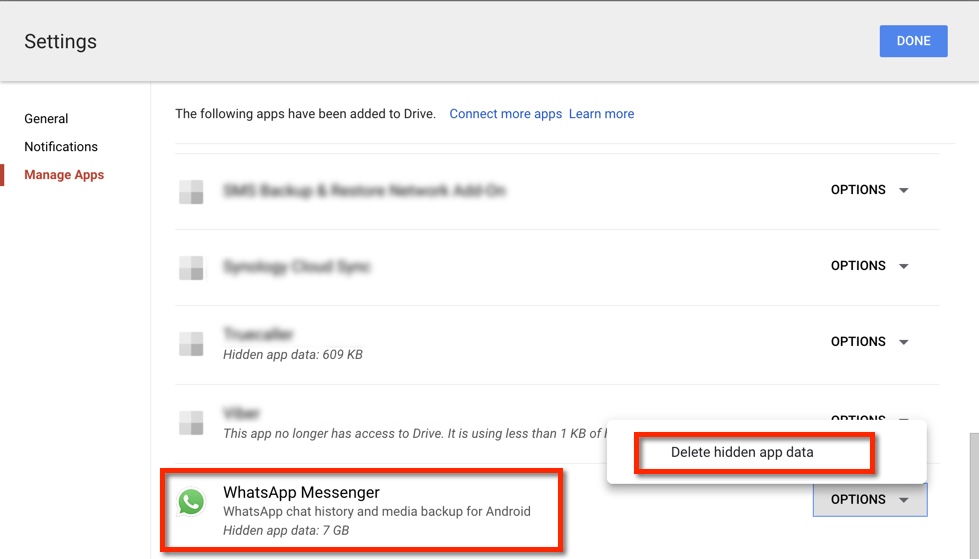
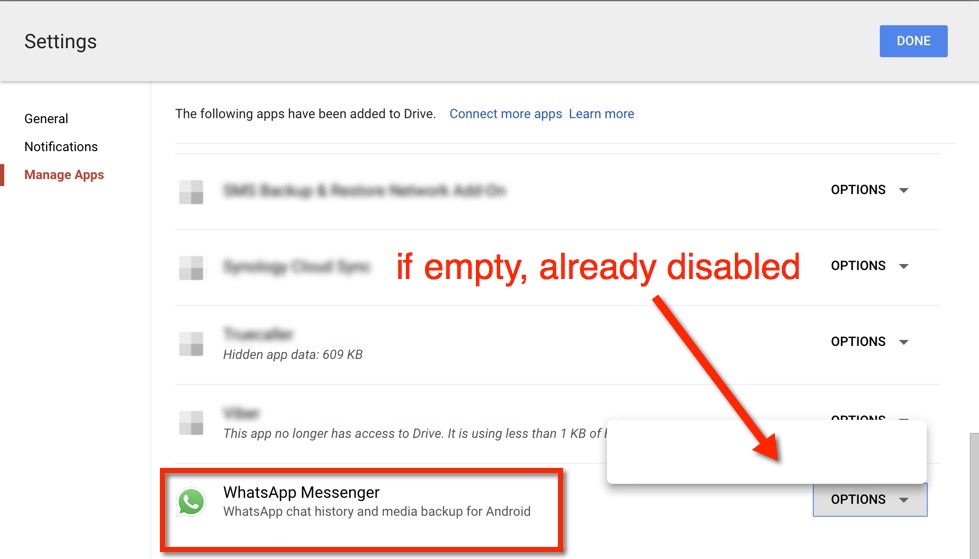
Latest WhatsApp releases automatically restore from Google Drive if you previously enabled this feature. This means that sometimes you don't have the option to restore from a local backup, as required by WazzapMigrator. WazzapMigrator works by creating a local backup with all your iPhone messages, so you need to disable WhatsApp backups on Google Drive like this:
- Using a computer, go to drive.google.com.
- In the top right, click the gear icon
> Settings.
- On the left, click Manage Apps.
- Find "WhatsApp" in the list.
Note: If your backup is large, WhatsApp might take a few minutes to display. - Click Options > Disconnect from Drive
Remember that after you get your iPhone messages back, you can restore the Google Drive backups as usual.
Was this article helpful?
That’s Great!
Thank you for your feedback
Sorry! We couldn't be helpful
Thank you for your feedback
Feedback sent
We appreciate your effort and will try to fix the article